LinkedIn Sequence
LinkedIn sequences allow automated social selling campaigns for your prospect and client contacts. You can automatically send connection requests and follow-up messages to build relationships and nudge contacts to schedule calls or meetings.
Note Make sure to switch to Business Development from the sidebar before initiating these steps.
CREATE a New LinkedIn Sequence
Follow these steps to set up automated LinkedIn touchpoints for a contact:
- Check any contact from the table.
- Click the Add to sequence button.
- Choose LinkedIn as your Outreach Channel.
- In the dialog, click the + Create new Linkedin sequence button.
-
Under the New LinkedIn Sequence dialog, enter a sequence name, write your connection request message, add/edit sequence step messages, and decide whether to send the first message immediately or send a connection request first.
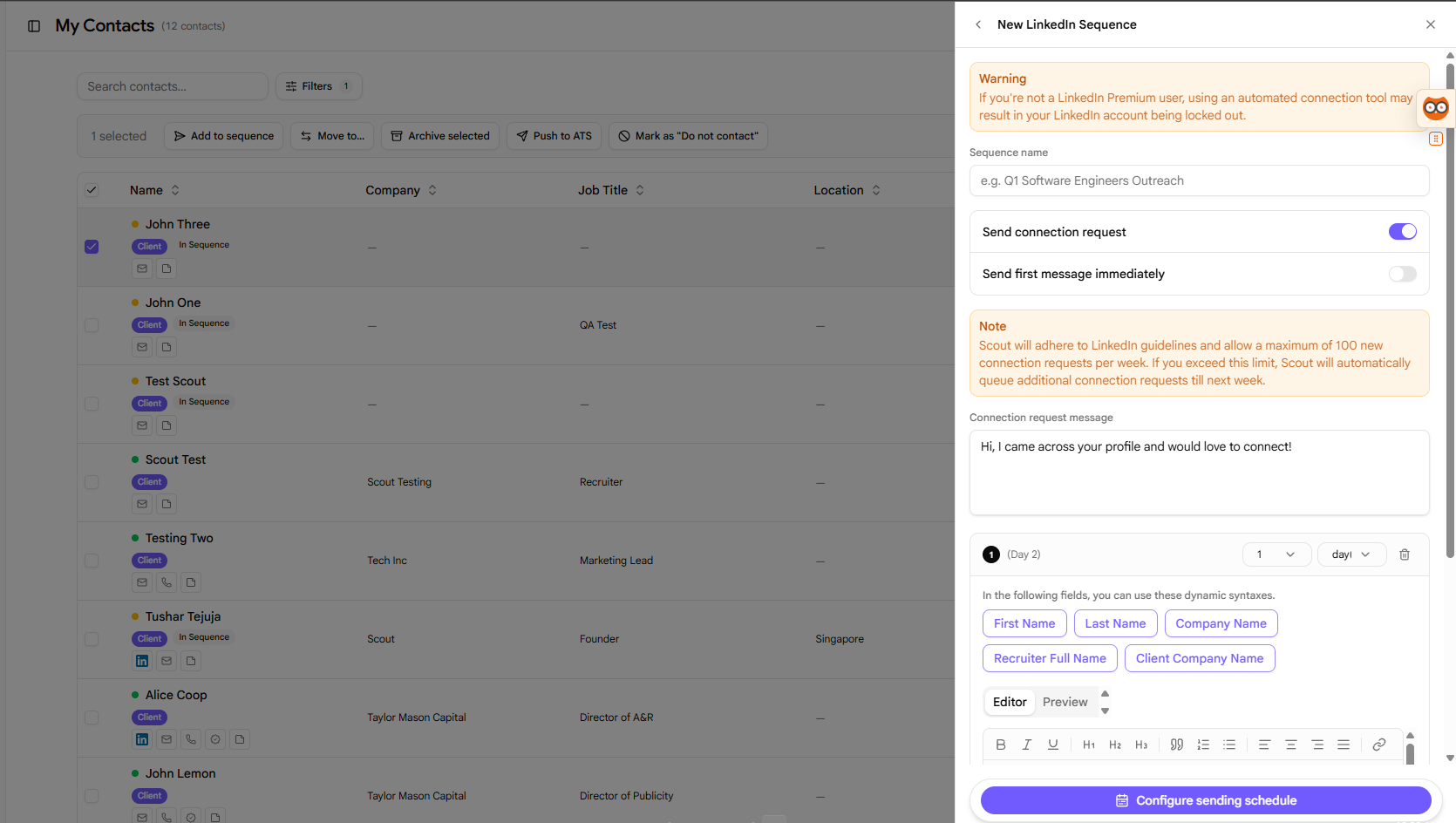
- Click the Configure sending schedule button to proceed.
-
Set your sending schedule (such as preferred days and active time blocks) in the Sending schedule dialog.
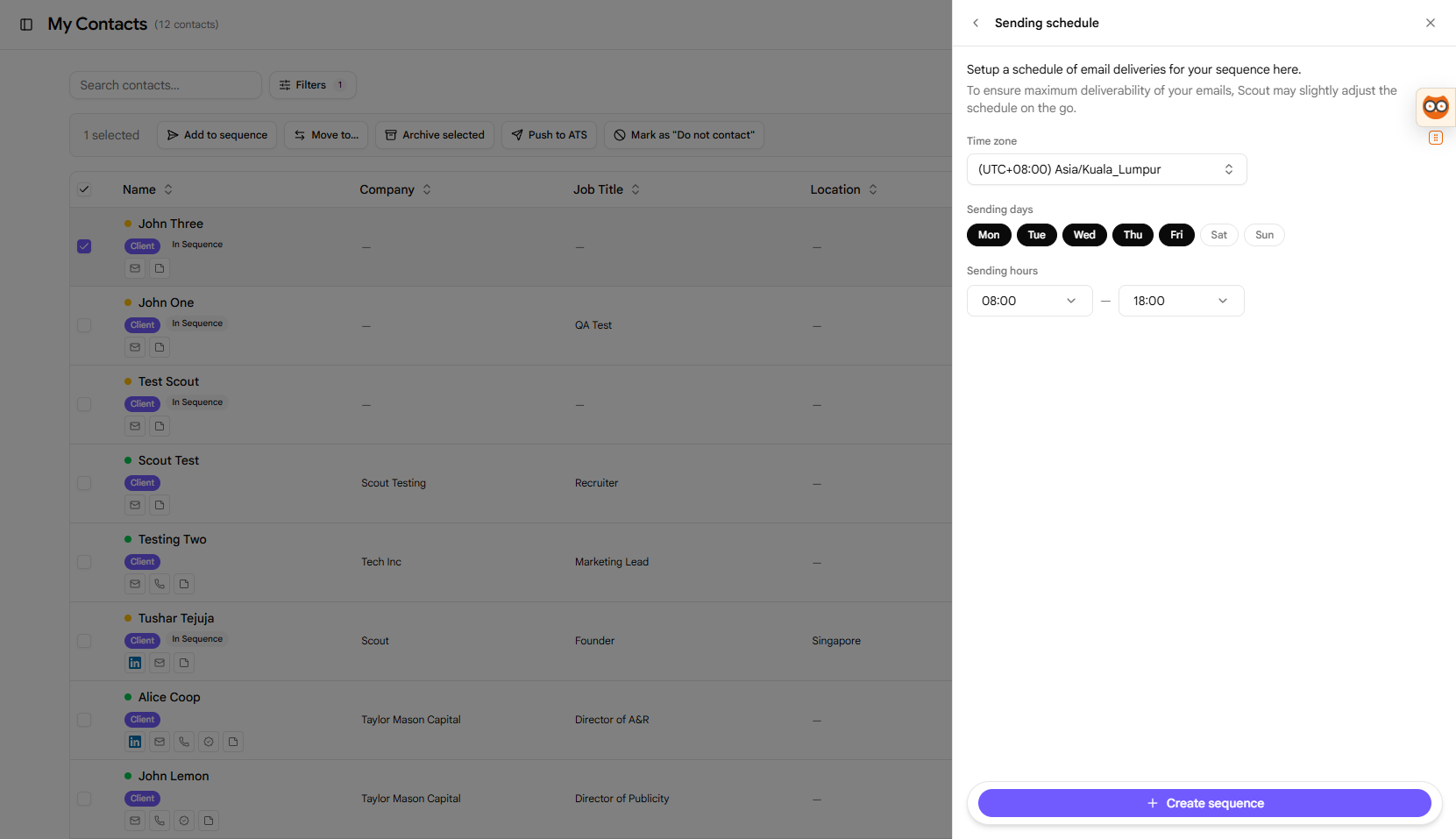
- Click the + Create sequence button to save.
- You will be redirected back to the Add to sequence dialog with your new sequence ready.
ASSIGN an Existing Sequence to a Contact
Quickly assign an active LinkedIn outreach sequence to a contact:
- Check any contact from the table.
- Click the Add to sequence button.
- Select LinkedIn as the Outreach Channel.
-
Choose an existing sequence from the dropdown menu in the dialog and click the Choose a LinkedIn sequence… button.
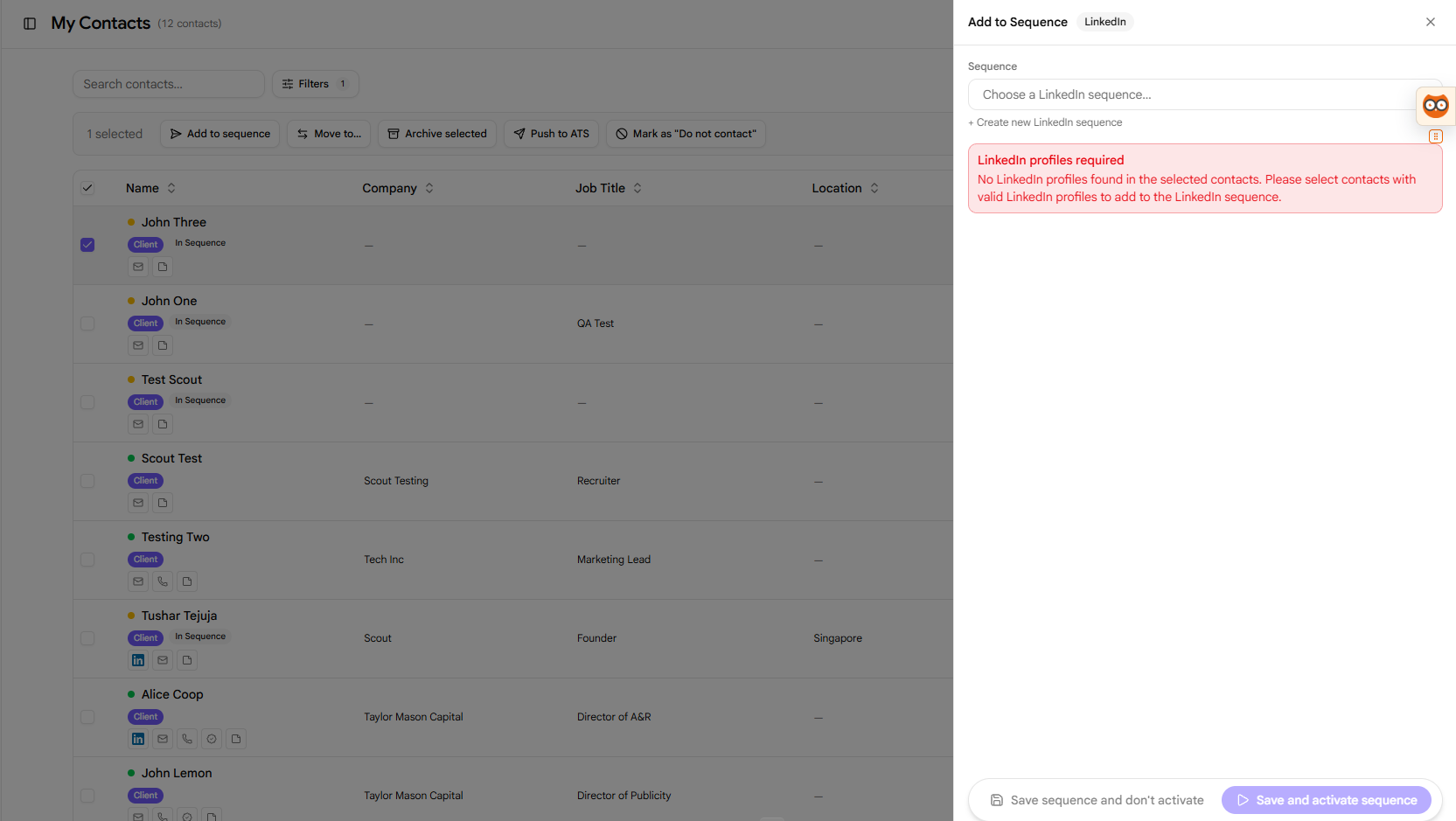
- Click either Save sequence and don’t activate to keep it paused, or Save sequence and activate it to start sending messages according to the schedule.
EDIT a LinkedIn Sequence
Refine your connection messages and follow-up templates:
- Go to the LinkedIn Sequences settings page from the sidebar.
- Click the Edit button in the Actions column next to your sequence.
-
The sequence editing page will open. Update sequence details, add steps, edit messages, or switch to the Schedule tab to alter execution rules.
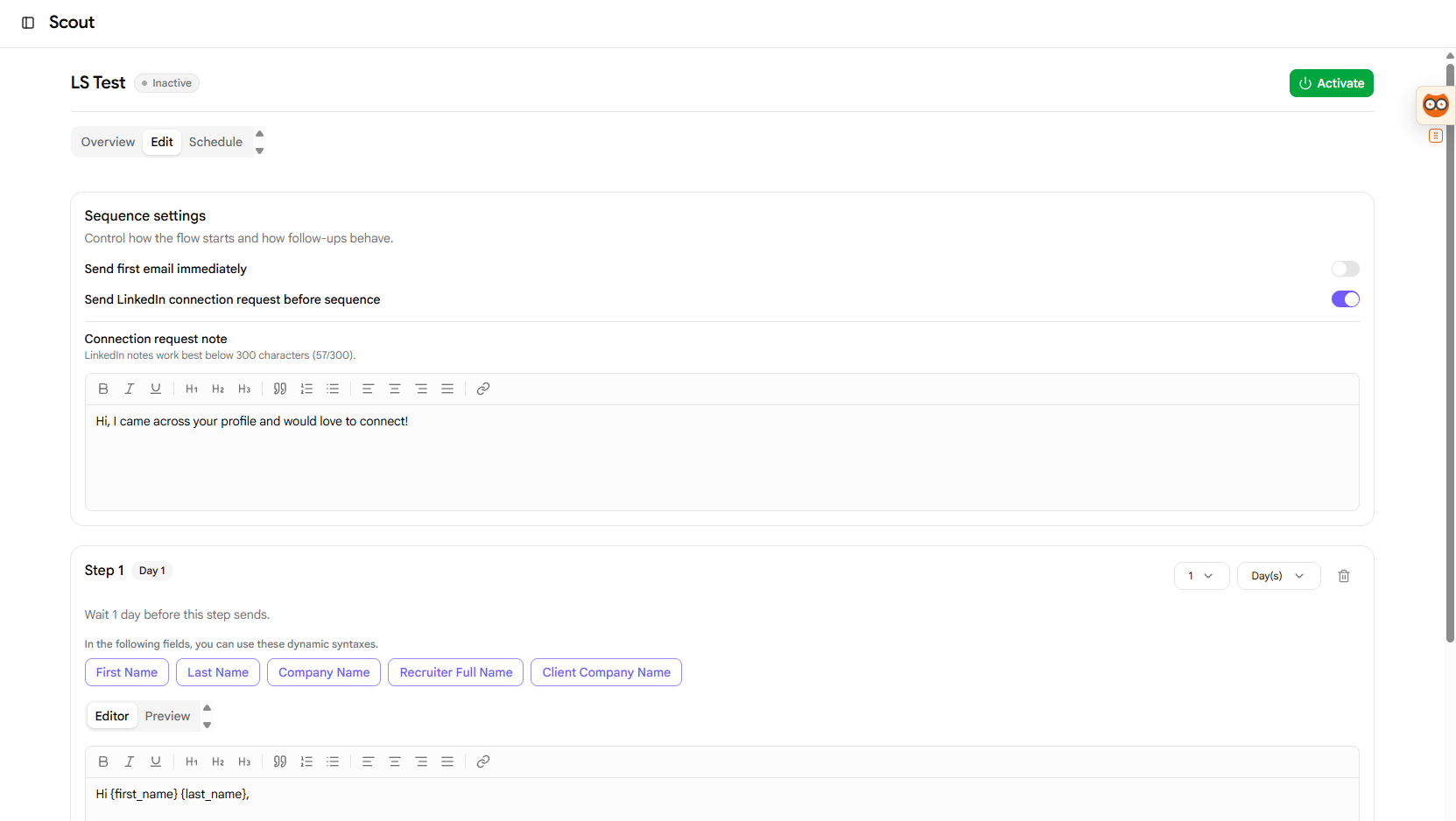
- Click the Save button to confirm.
MANAGE LinkedIn Sequences
Control active campaigns or delete obsolete outreach sequences:
- Open the LinkedIn Sequences page from the sidebar.
- Find your sequence in the overview table.
-
Click the Toggle button in the Actions column to pause or resume active messaging.
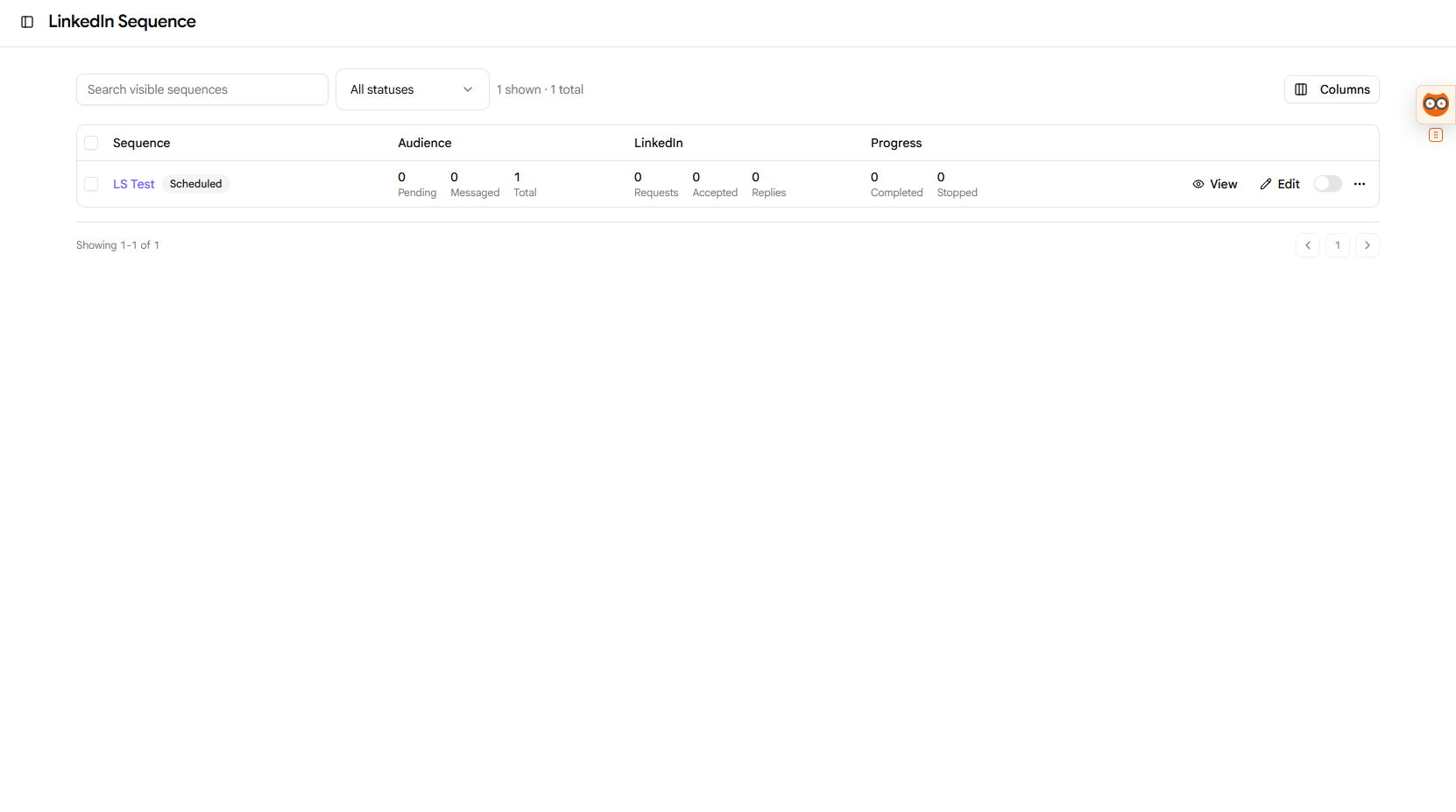
- Click the three dots (…) button next to the toggle and select Delete to permanently remove the sequence.
Pro BD Tip
LinkedIn connection notes are limited to 300 characters. Keep your connection request message clear, professional, and focus on scheduling a brief conversation about potential synergies.