LinkedIn Sequence
LinkedIn sequences enable automated outreach on LinkedIn. You can create sequences that send connection requests and follow-up messages to candidates automatically at specified intervals, nudging them to reply or schedule a meeting.
CREATE a New LinkedIn Sequence
Set up automated LinkedIn outreach for a candidate by following these steps:
- Open the profile of your target candidate from the Talent Map, New Search results, or Job Board.
- Click the Sequence tab.
- Click the Add to sequence button.
- Select LinkedIn as your Outreach Channel.
- In the Add to sequence dialog, click the + Create new Linkedin sequence button.
-
A New LinkedIn Sequence dialog will open. Enter a name for the sequence, customize your connection request note, add or edit follow-up steps, and choose whether to send the first message immediately or send a connection request first.
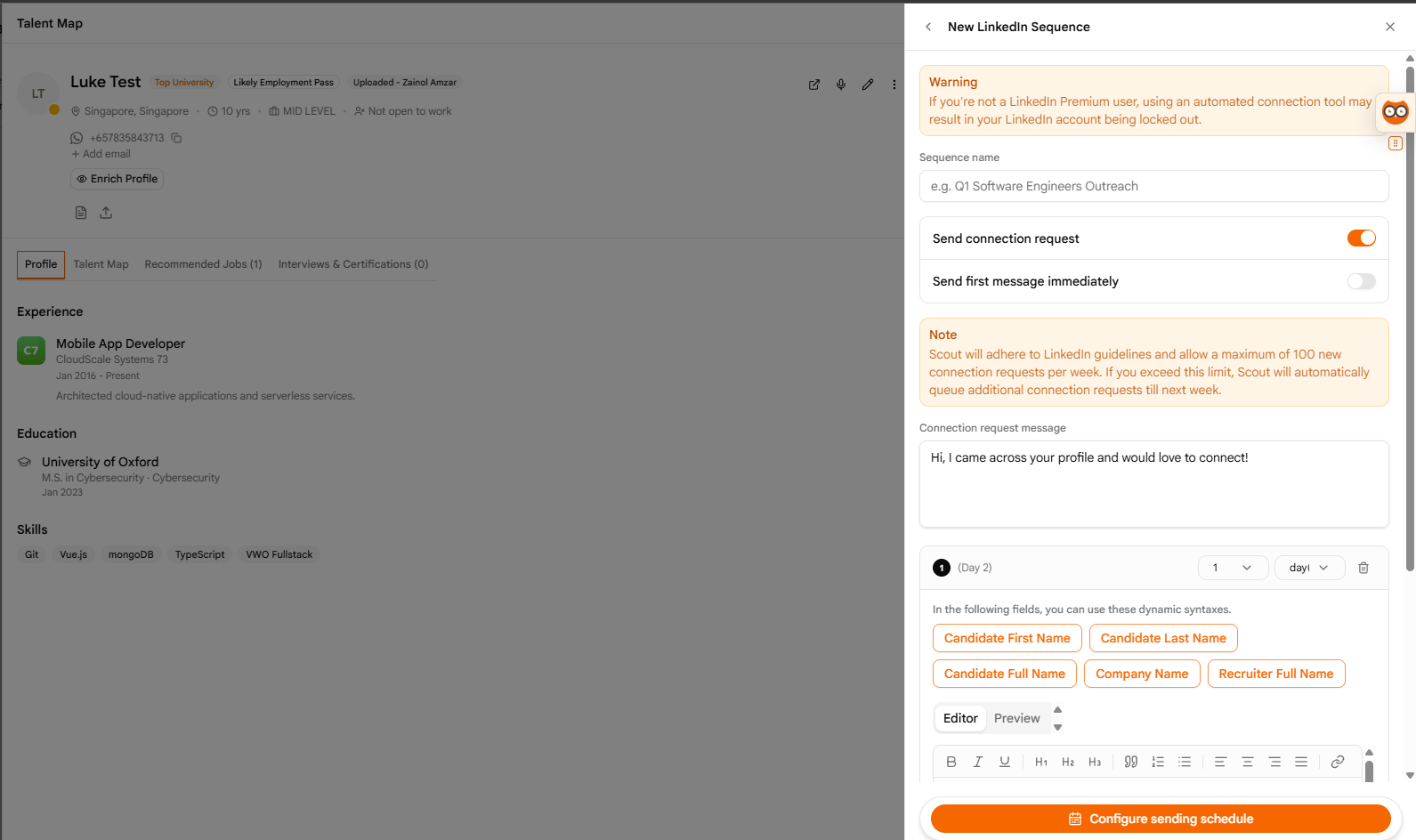
- Click the Configure sending schedule button.
-
Set up the active schedule rules (days and hours) in the Sending schedule dialog.
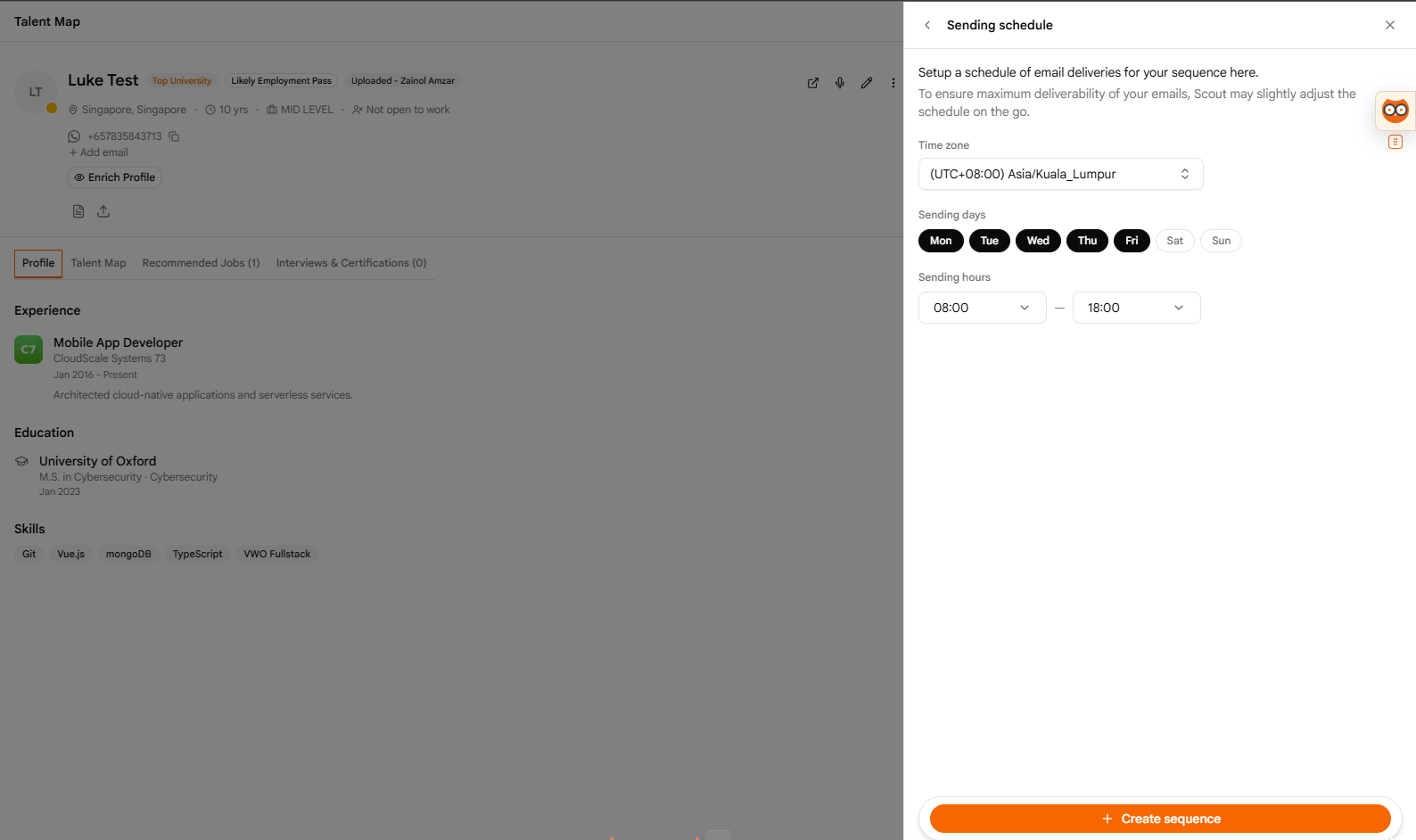
- Click the + Create sequence button to save.
- The dialog will close, redirecting you back to the Add to sequence screen with your new sequence pre-selected.
ASSIGN an Existing Sequence to a Candidate
Apply a pre-configured LinkedIn sequence to a candidate profile:
- Open the target candidate’s profile page from the Talent Map, New Search results, or Job Board.
- Click the Sequence tab on their profile.
- Click the Add to sequence button.
- Select LinkedIn as the Outreach Channel.
-
In the Add to sequence dialog, choose an existing sequence from the dropdown menu and click Choose a LinkedIn sequence….
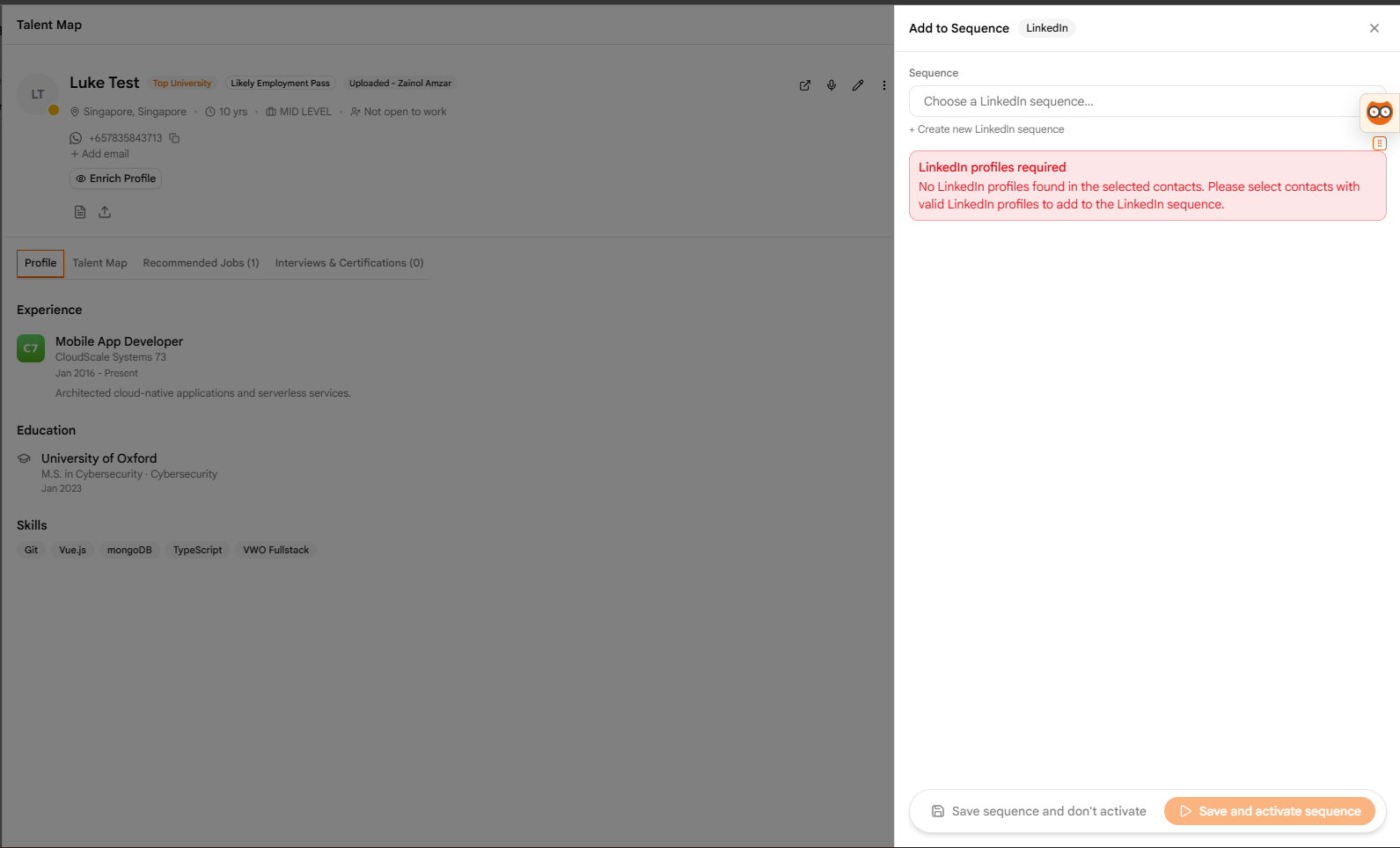
- Select Save sequence and don’t activate to save as draft, or Save sequence and activate it to initiate the schedule.
EDIT a LinkedIn Sequence
Update sequence messages and scheduling options at any time:
- Select LinkedIn Sequences from the sidebar menu under settings.
- Locate your sequence in the list and click Edit in the Actions column.
-
In the edit panel, you can modify the name, connection message, add/edit sequence steps, or switch to the Schedule tab to adjust active send windows.
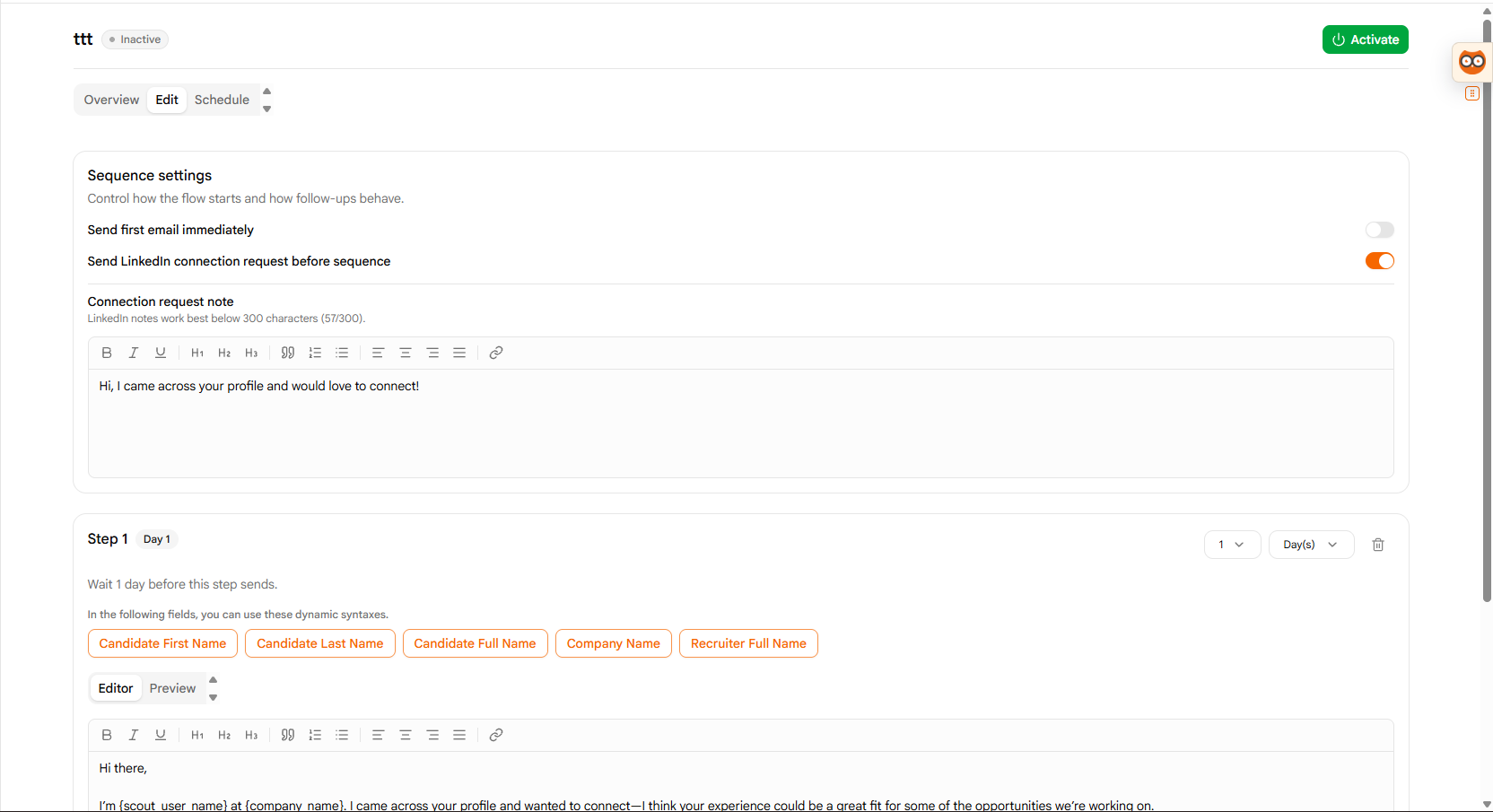
- Click the Save button when you are done.
MANAGE LinkedIn Sequences
Control active outreach campaigns or clean up obsolete sequences:
- Navigate to the LinkedIn Sequences page from the sidebar.
- Find the sequence you want to manage in the table.
-
Click the Toggle switch in the Actions column to pause or resume the sequence.
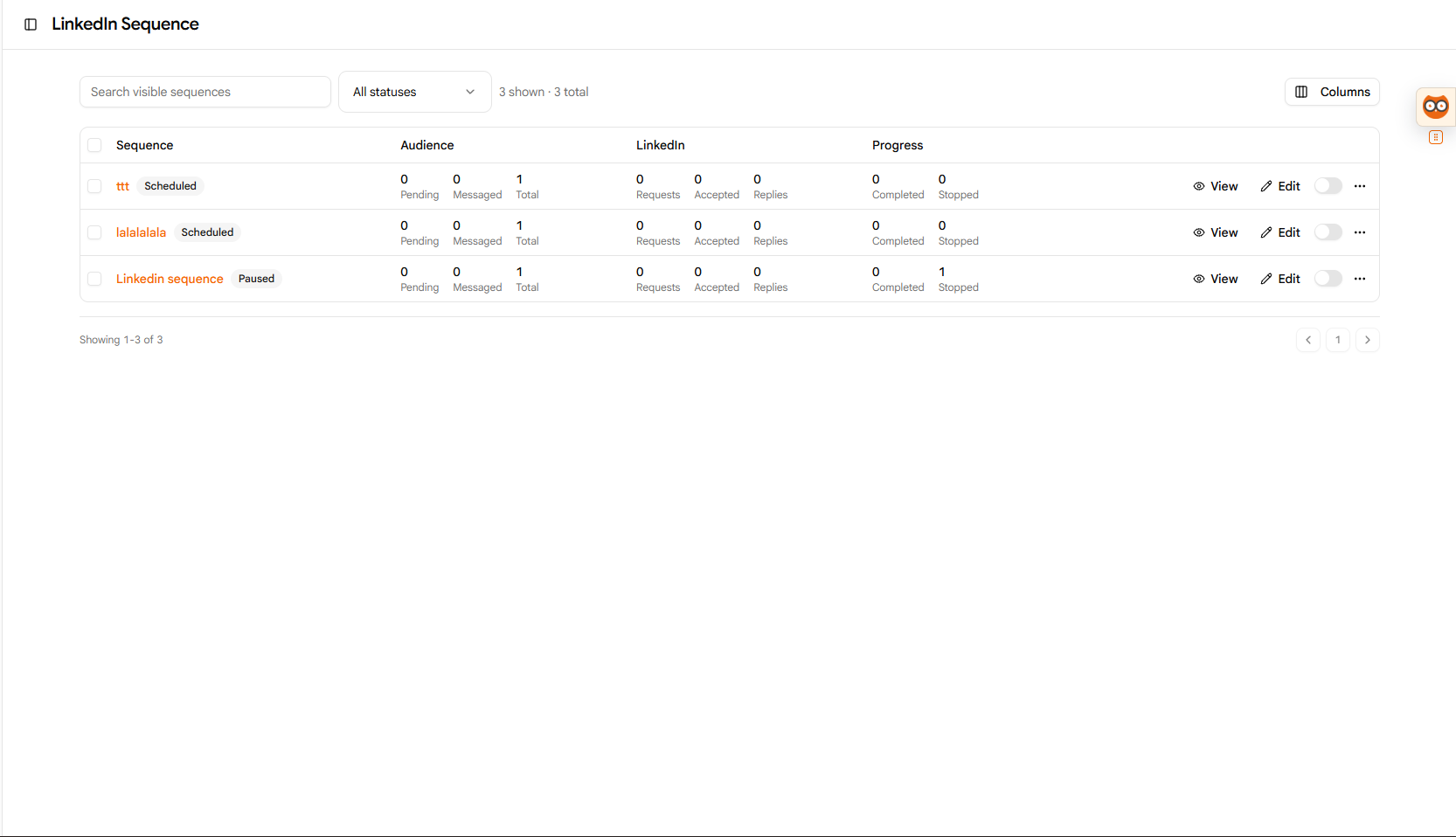
- Click the three dots (…) button next to the toggle and select Delete to remove the sequence permanently.
Pro Sourcing Tip
LinkedIn has weekly limits on connection requests. Personalize your connection messages to maximize acceptance rates, and keep follow-up steps helpful rather than aggressive.