Email Sequence
Automated email sequences allow you to send structured, multi-step campaigns to candidates. By scheduling follow-up emails at specific intervals, you can keep candidates engaged, follow up consistently without manual effort, and nudge them to reply or book a meeting with you.
CREATE a New Email Sequence
Follow these steps to create a new automated email sequence and enroll a candidate:
- Go to a candidate’s profile by selecting them from the Talent Map, New Search results, or your Job Board.
- Click on the Sequence tab on the profile page.
- Click the Add to sequence button.
- Choose Email as your Outreach Channel.
- In the Add to sequence dialog, click the + Create new Email sequence button.
-
A New Email Sequence dialog will open. Enter a name for the sequence, draft your email steps (click Add Step to add follow-up emails and edit their messages), and optionally enable Send first message immediately.
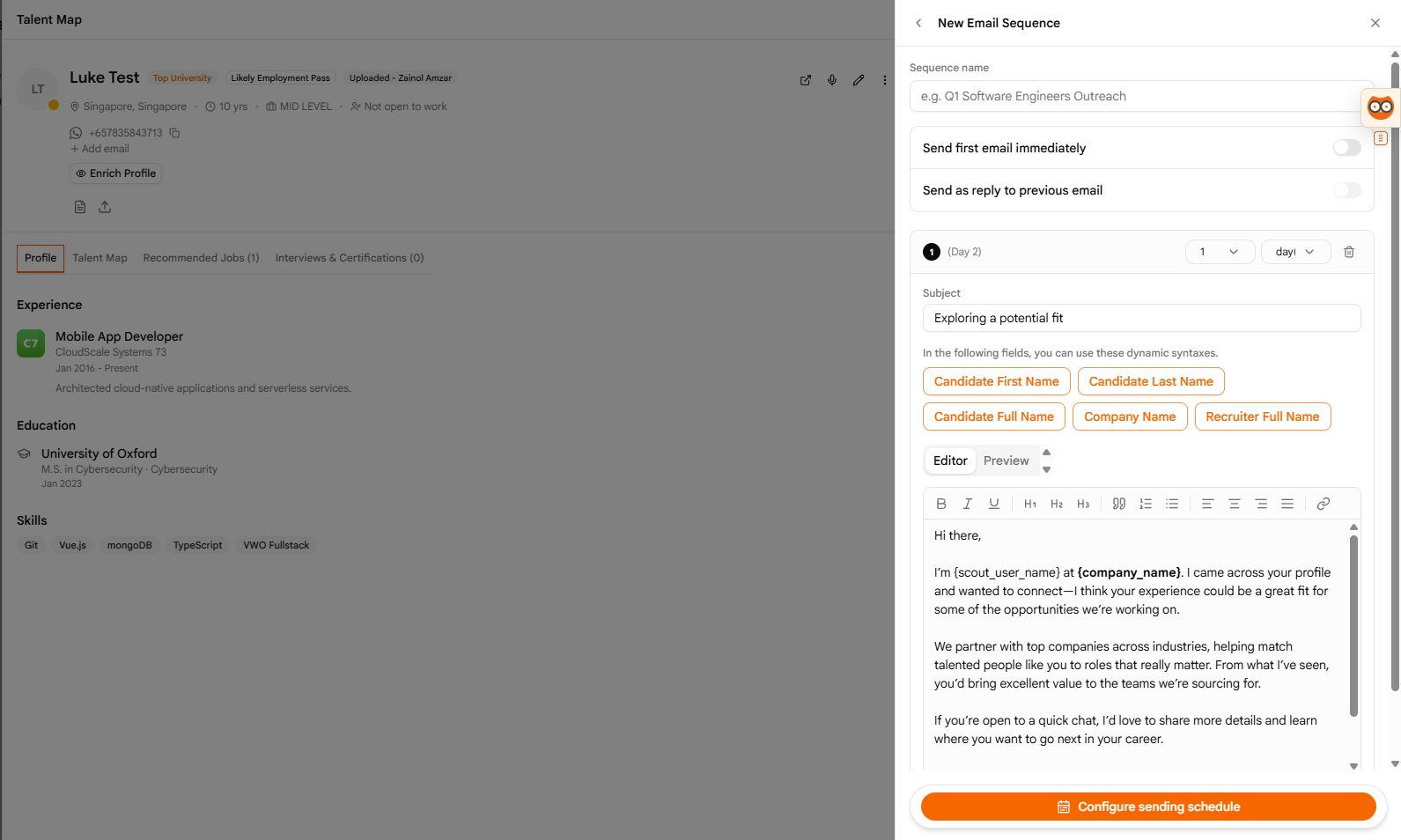
- Click the Configure sending schedule button to proceed.
-
In the Sending schedule dialog, customize the sequence’s sending schedule (such as days of the week and active hours).
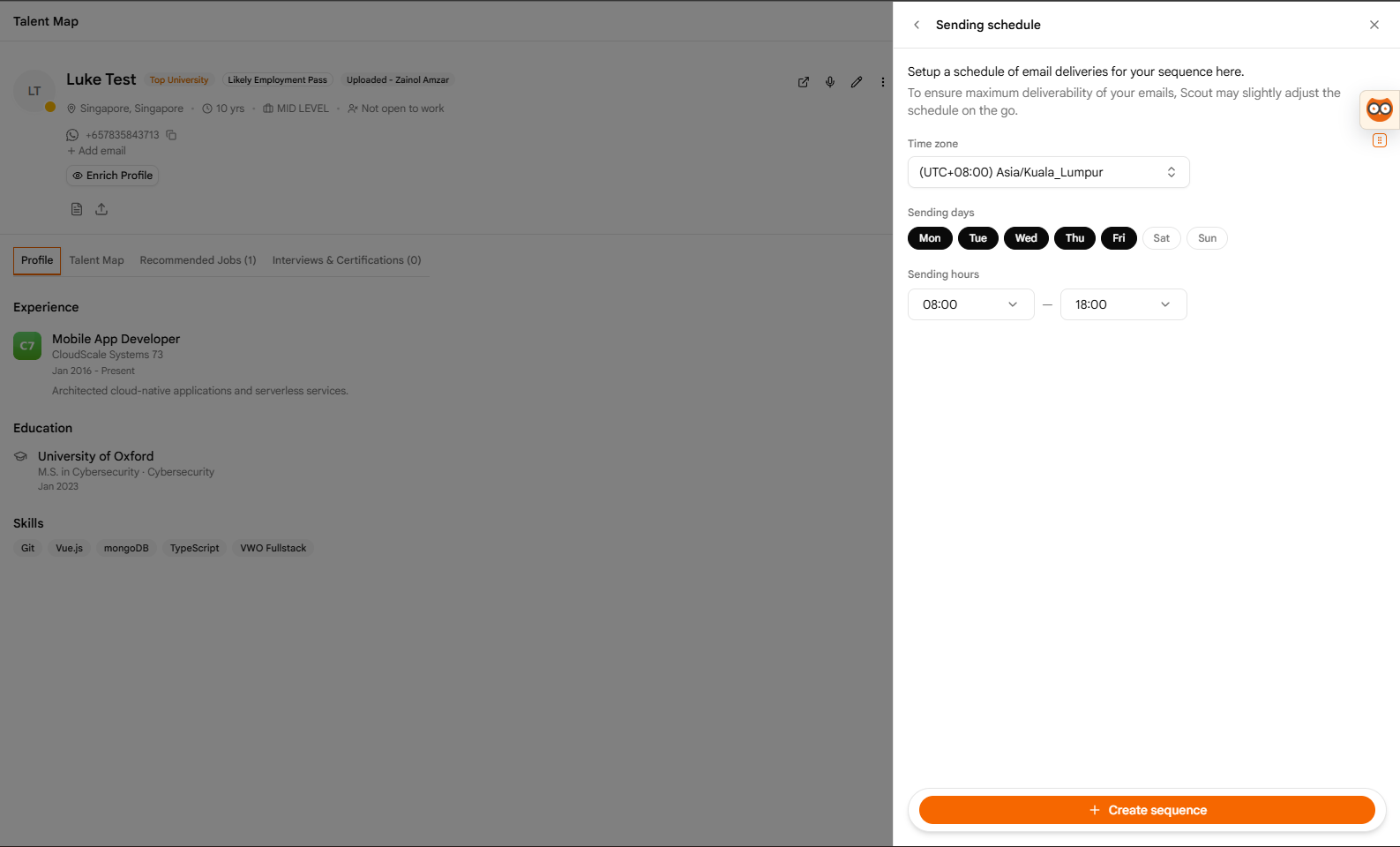
- Click the + Create sequence button to save it.
- You will be redirected back to the Add to sequence dialog with your new sequence selected.
ASSIGN an Existing Sequence to a Candidate
If you already have a sequence configured, you can assign it directly to a candidate:
- Open the candidate’s profile page from the Talent Map, New Search results, or Job Board.
- Click the Sequence tab.
- Click the Add to sequence button.
- Select Email as your Outreach Channel.
-
In the Add to sequence dialog, select an existing sequence from the dropdown list and click the Choose an Email sequence… button.
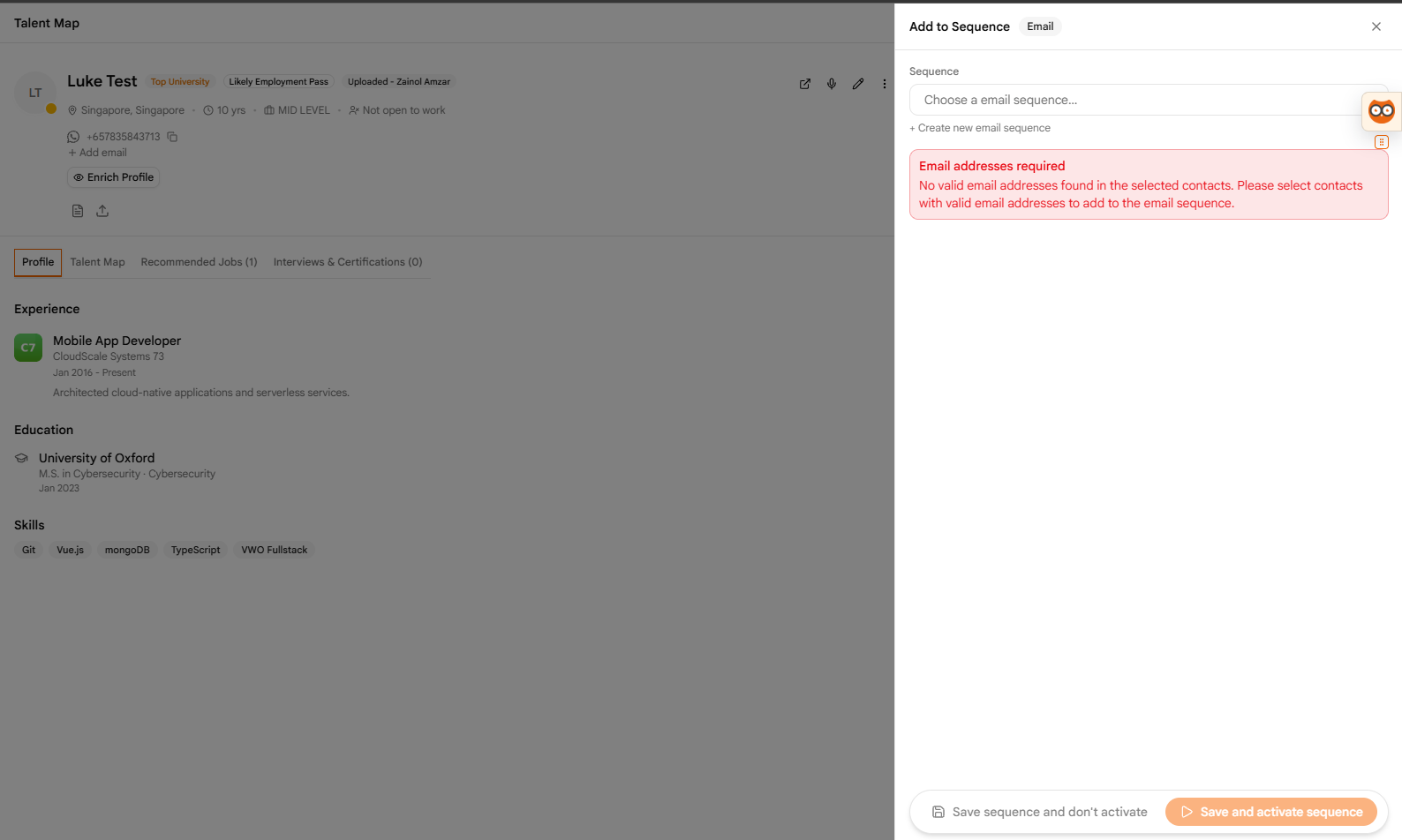
- Choose either Save sequence and don’t activate (saves as draft) or Save sequence and activate it (starts the automated schedule) to complete the process.
EDIT an Email Sequence
Update sequence templates, steps, and scheduling rules at any time:
- Click on Email Sequences under the outreach settings in the sidebar.
- Locate the sequence you want to modify and click the Edit button in the Actions column.
- The edit page for the selected sequence will open. From here, you can:
- Edit general details (such as the sequence name).
- Add new steps or edit existing step messages in the Steps tab.
- Modify the active days, hours, and delays under the Schedule tab.
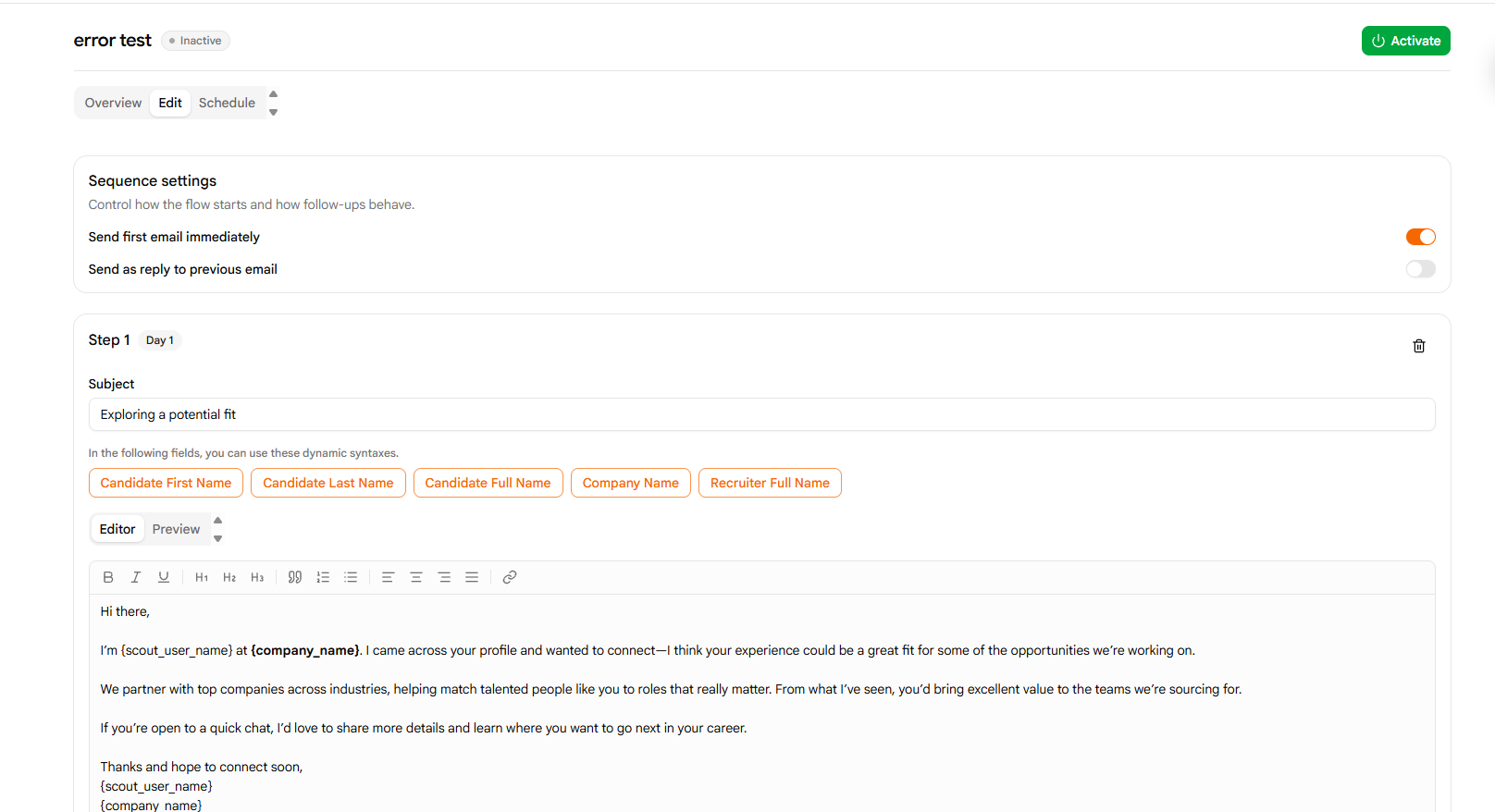
- Click the Save button to apply your changes.
MANAGE Email Sequences
Control the status or delete sequences you no longer need:
- Navigate to the Email Sequences page from the sidebar.
- Find the target sequence in the overview table.
-
Click the Toggle switch in the Actions column to pause or resume the sequence (pausing stops sending further automated emails to enrolled candidates).
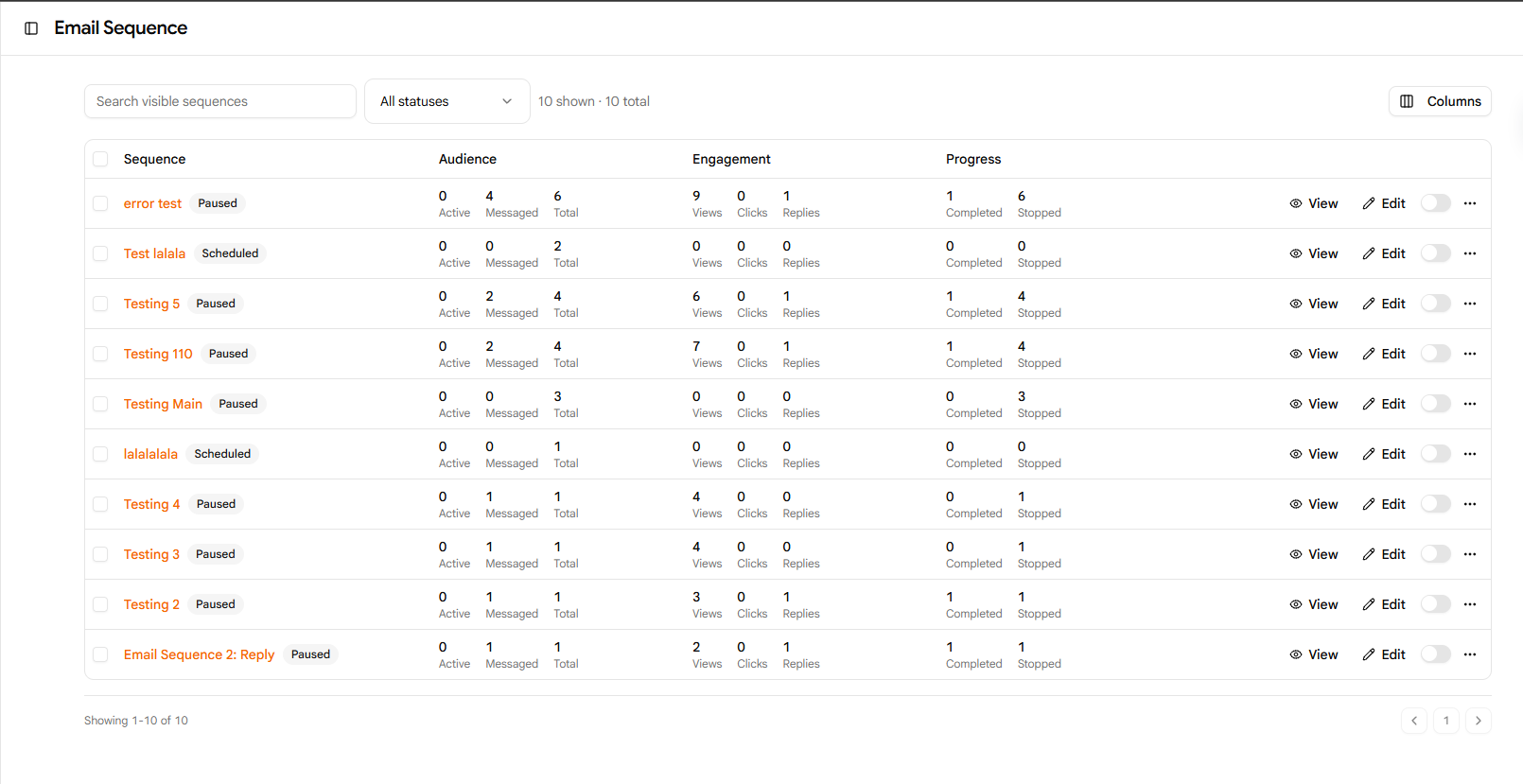
- Click the three dots (…) button next to the toggle and select Delete to permanently remove the sequence.
Pro Sourcing Tip
A well-structured sequence includes 3-4 steps spread out over 2-3 weeks. Keep the first step highly personalized, and use subsequent steps to provide additional context, share useful resources, or simply bump your previous message with a quick note.